Can you really learn the piano with online lessons? Yes, you can! For the best results, please read the following tips:
- Being able to hear each other is important for both the student and the teacher. The microphones in most devices pick up more background noise than you think. Sometimes the sounds of whispering, dishes clattering, papers rustling, and toys being played with is the same loudness over the internet as the sound of the piano. To make a lesson go smoothly, it is helpful for family members to do their activities away from the piano’s location if possible. If your piano is in a central location, please be mindful of how much noise is transmitted and perhaps designate that 1/2 hour as quiet time in the house.
- If your internet seems a little slow, you can try running a speed test on the device you’re using for lessons next to the piano. If you don’t have a lot of internet bandwidth, it can be helpful to limit internet usage by others in the household during the lesson. Sometimes if you’re further away from your router, you lose Wi-Fi signal. If this is the case, you may be able to move your router closer to the piano or move your keyboard closer to your router. You can also try to reboot your router and/ or turn off the HD video in Zoom.
- Take time before your lesson to understand where the buttons/controls are for the video platform you are using. The location and appearance of these controls vary depending on the platform and what device you are using. There are Youtube videos and other information sources online that can assist you with technology issues.
- Video chat platforms like Zoom focus mostly on the voice and want to suppress any background noise. This works well in a meeting when you don’t want your coworkers to hear the neighbor’s dog barking. Unfortunately, that setting will also suppress the sound of the piano. Zoom and Google Meet are constantly updating their features, so try to adjust your audio settings to get the least amount of noise removal or suppression as possible. You will want to have the “Automatically adjust microphone volume” setting turned off. To do this on a laptop, find the microphone icon at the bottom left of the screen and click on the /\. This will open a window => Click on “Audio Settings” => Make sure the box to the left of “Automatically adjust microphone volume” is white. There should be a blue circle in the “Original sound for musicians”.
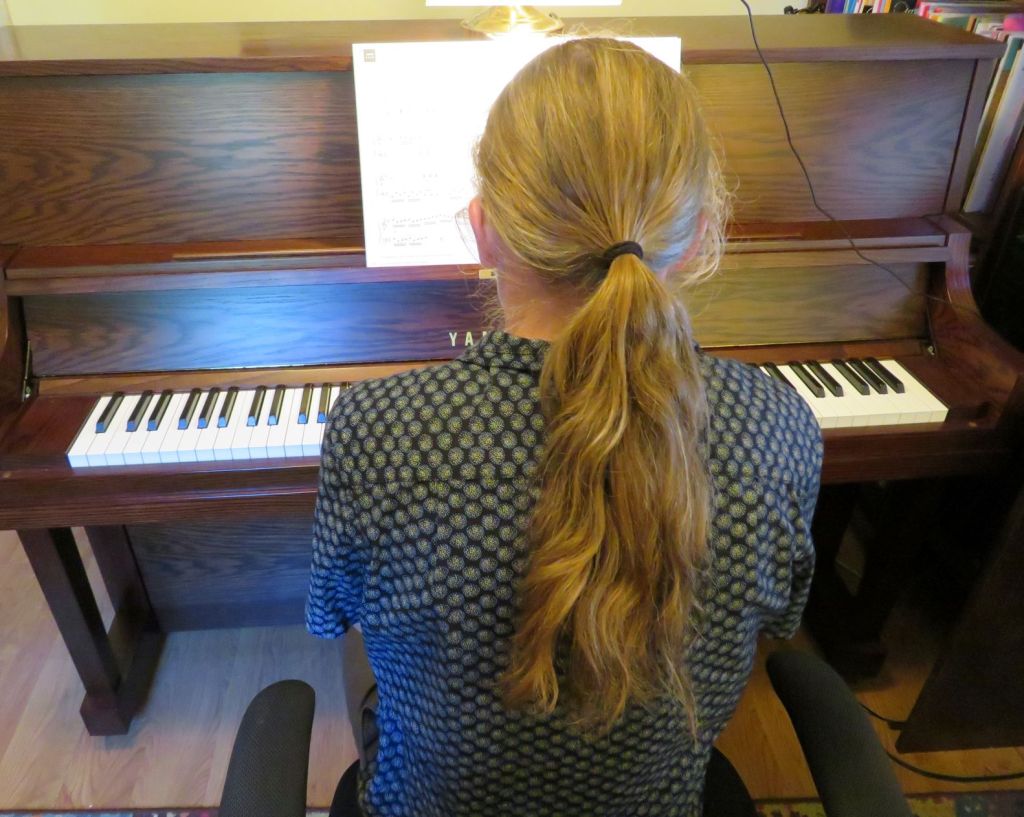
- Camera placement is important for an online lesson. I need to be able to see what keys are being played and what the student’s hands look like. The photographs below show examples of good and bad camera angles for an online lesson.

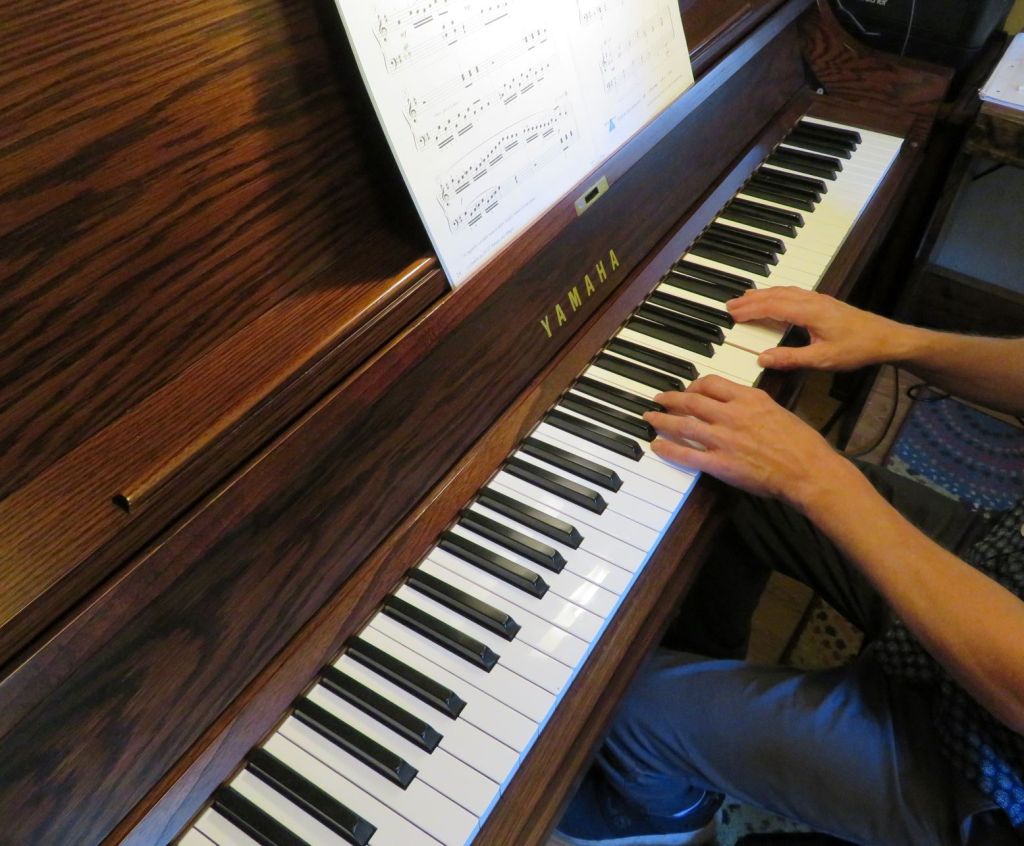

The photo above is an example of good camera placement. I can see what notes my student is playing.

 Lawson Music Studio